Programming ATtiny85 through USB
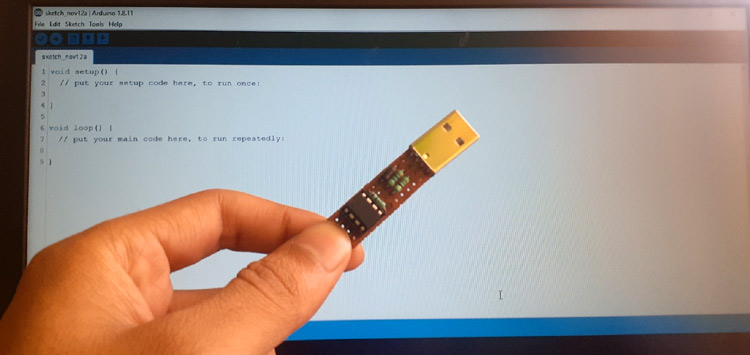
In a previous post, we talked about the ATtiny85 and how you can program it with an Arduino. But connecting Attiny85 to an Arduino and using Arduino as ISP can be difficult and time-consuming. So today, we are going to build an ATtiny85 Programming board, so that we can directly program it like other microcontroller boards.
Requirements
- Arduino (Needed for the first time to flash the bootloader)
- Attiny85
- 47Ω x 2 Resistors
- 1kΩ x 1 Resistor
- Zener Diodes x 2
- IN5819 Diode x 1
- 8-Pin Base (Optional but Recommended)
- USB A-type Male
- Breadboard
- Jumper Wires
- 10µf capacitor
Get to know ATtiny85
Its good to know what we are dealing with. The ATtiny85 have 8KB ISP flash memory, 512B EEPROM, 512B SRAM, 6 general purpose I/O Pins, 32 general purpose working registers, one 8-bit timer/counter with compare modes, one 8-bit high-speed timer/counter, USI, internal and external Interrupts, 4-channel 10-bit A/D converter, programmable watchdog timer with internal oscillator, three software selectable power saving modes.
ATtiny85 Pinout is given below:
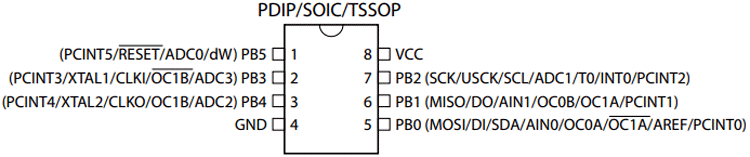
Here is a table with pin description for each pin:
| Pin No. | Pin Name | Pin Description |
| 1. | PB5 (PCINT5 / ADC0 / dW) | PCINT5: Pin Change Interrupt 0, Source5 RESET: Reset Pin ADC0: ADC Input Channel 0 dW: debug WIRE I/O |
| 2. | PB3 (PCINT3 / XTAL1/ CLKI / ADC3) | PCINT3: Pin Change Interrupt 0, Source3 XTAL1: Crystal Oscillator Pin1 CLKI: External Clock Input ADC3: ADC Input Channel 3 |
| 3. | PB4 (PCINT4 / XTAL2 / CLKO / OC1B/ADC2) | PCINT4: Pin Change Interrupt 0, Source 4 XTAL2: Crystal Oscillator Pin 2 CLKO: System Clock Output OC1B: Timer/Counter1 Compare Match B Output ADC2: ADC Input Channel 2 |
| 4. | GND | Ground Pin |
| 5. | PB0 (MOSI / DI / SDA / AIN0 / OC0A / AREF / PCINT0) | MOSI: SPI Master Data Output / Slave Data Input DI: USI Data Input (Three Wire Mode) SDA: USI Data Input (Two Wire Mode) AIN0: Analog Comparator, Positive Input OC0A: Timer/Counter0 Compare Match A output AREF: External Analog Reference PCINT0: Pin Change Interrupt 0, Source 0 |
| 6. | PB1 (MISO / D0 / AIN1 / OC0B / OC1A / PCINT1) | MISO: SPI Master Data Input / Slave Data Output DO: USI Data Output (Three Wire Mode) AIN1: Analog Comparator, Negative Input OC0B: Timer/Counter0 Compare Match B Output OC1A: Timer/Counter1 Compare Match A Output PCINT1: Pin Change Interrupt 0, Source 1 |
| 7. | PB2(SCK / USCK / SCL / ADC1 / T0 / INT0 / PCINT2) | SCK: Serial Clock Input USCK: USI Clock (Three Wire Mode) SCL: USI Clock (Two Wire Mode) ADC1: ADC Input Channel 1 T0: Timer/Counter0 Clock Source INT0: External Interrupt 0 Input PCINT2: Pin Change Interrupt 0, Source 2 |
| 8. | VCC | Supply Voltage Pin |
Flashing the Bootloader Using Arduino
To program ATtiny85 without an Arduino, we should first upload a bootloader into it using an Arduino board. This is an one-time process. Boot-loader is a special program that runs in the microcontroller that has to be programmed. One of the most convenient ways to load your program data onto the microcontroller is through a boot-loader. Boot-loader sits on the MCU and performs the incoming instructions, and then writes new program information to the microcontroller’s memory. Flashing a boot-loader on a microcontroller removes the need for special external hardware such as the Arduino board to program the microcontroller and you will be able to program it directly using a USB connection. The Digispark ATtiny85 board runs the “micronucleus tiny85” boot-loader, originally written by Bluebie. The boot-loader is the code that is pre-programmed on Digispark and allows it to act as a USB device so that it can be programmed by the Arduino IDE. We are also going to flash the same digispark attiny85 bootloader on ATtiny85.
Here is a step by step guide to flash the micronucleus to ATtiny85 using an Arduino board and Arduino IDE is given below:
Step1: Configuring Arduino board as an ISP:
Using the ISP protocol we are going to configure the Arduino one to act as a Programmer. For that connect the Arduino uno to your computer and then open ARduino IDE. Next navigate to File > Example > ArduinoISP and upload the Arduino ISP code.
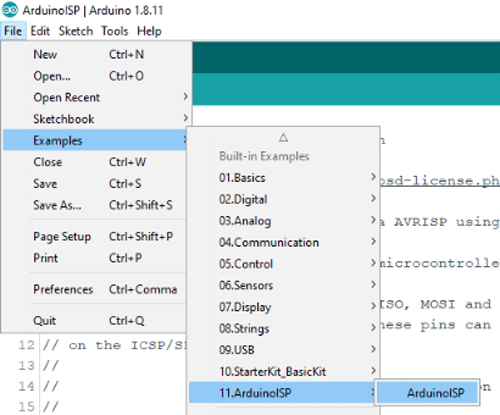
Unplug Arduino Uno from your computer and follow Step 2.
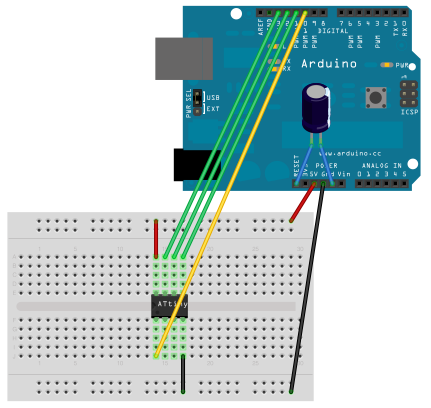
Step 2: Circuit Diagram for Flashing Boot-loader on ATtiny85:
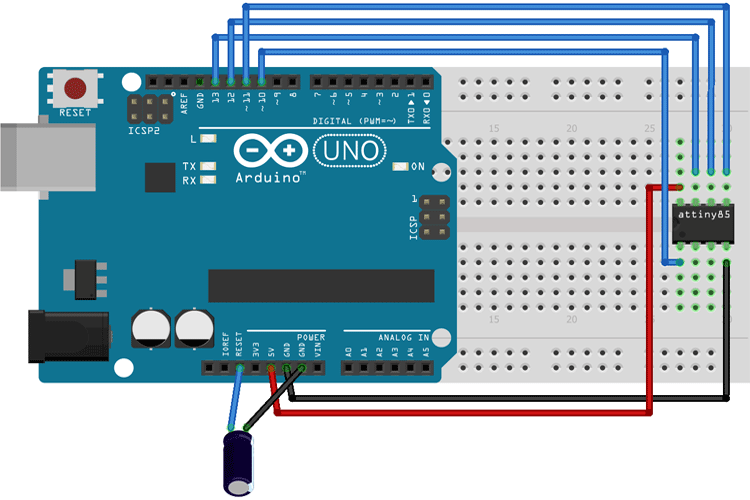
The complete connections are given in the below table:
| ATtiny85 Pin | Arduino Uno Pin |
| Vcc | 5V |
| GND | GND |
| Pin 2 | 13 |
| Pin 1 | 12 |
| Pin 0 | 11 |
| Reset | 10 |
Now plug-in the Arduino Uno to the laptop and open Arduino IDE. Find what COM port the Uno is connected to. ex COM3
After this, download the ATtiny85 Boot-loader files. EDIT “Burn_AT85_bootloader.bat” with a text editor and change the COM port number “PCOM3” with whatever COM port number your Uno is connected to then Save the changes before exiting.
Now move the edited “Burn_AT85_bootloader.bat” and “ATtiny85.hex” files into the Arduino IDE root folder ex. C:\Program Files (x86)\Arduino
After that, right-click on “Burn_AT85_bootloader.bat” and select “Run as Admin”. It takes approx 5 to 6 seconds to flash the boot-loader. If all went well, you should receive this message “AVRdude done. Thank you. Press any key to continue…”.
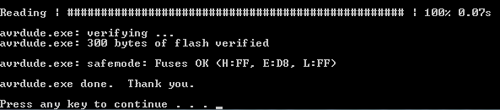
With this, the Boot-loader is successfully installed onto the ATtiny85 Chip.
Now we are ready to build the circuit so we can now program the ATtiny85 directly from a USB port.
Circuit Diagram
All credits for the schematic goes to Digispark ATtiny85 but as we aim to build a programmer for ATtiny85.
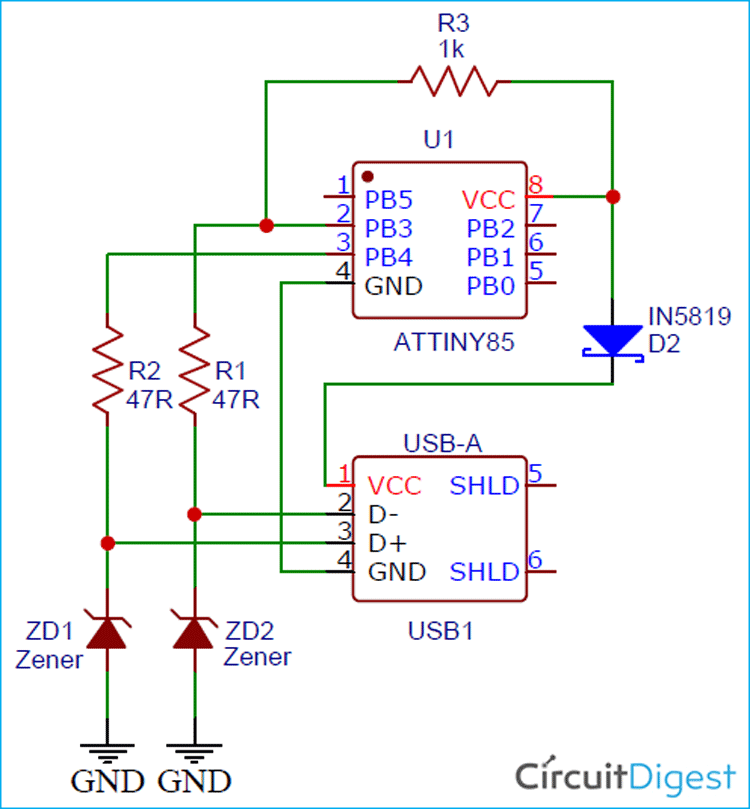
The R3 is a pull-up resistor that is connected between Vcc and PB3 pins of IC while the Zener Diodes (D1-D2) are added for total USB interface protection.
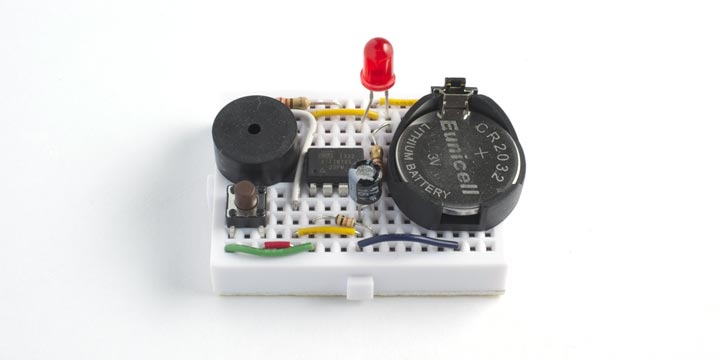
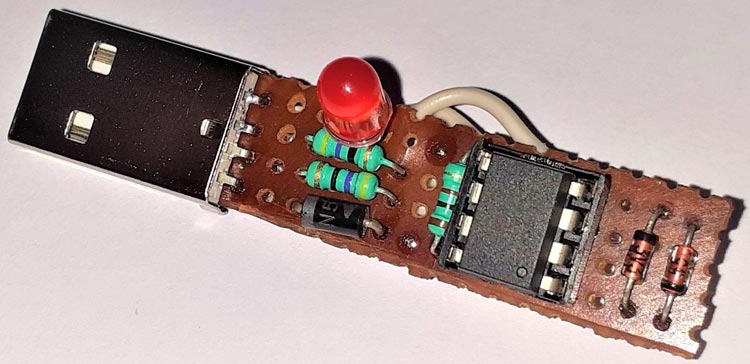
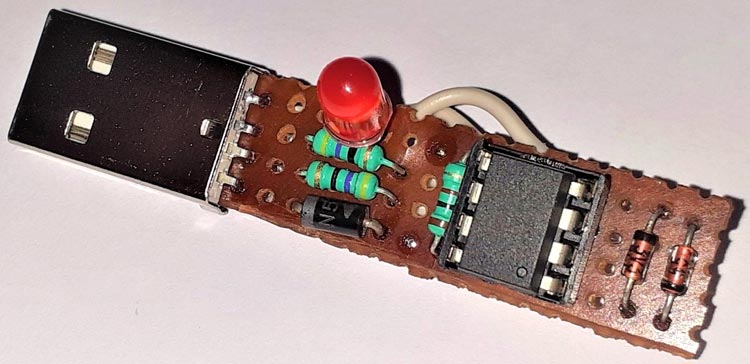
After soldering all the components on the perf board, it will look something like below:
Installing Digispark Drivers
So to make things work we have to install Digispark Drivers. If you don’t have them you can download them from here Digispark Drivers.
Then, extract the zip file and double click on the “DPinst64.exe” application to install the drivers.
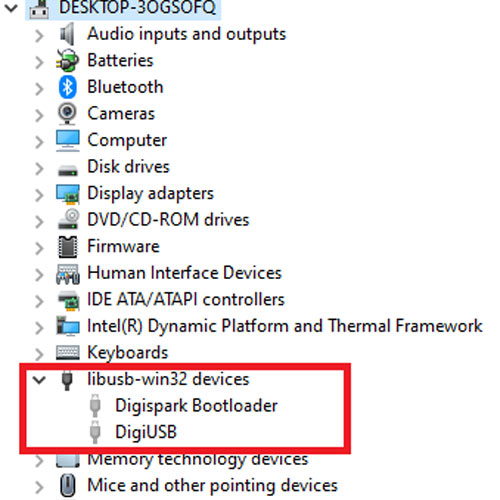
Once the drivers are successfully installed, Plug in your ATtiny85 board to the laptop. Now go to Device Manager on your Windows and the ATtiny85 device will be listed under “libusb-win32 devices” as “Digispark Bootloader”. If you can’t find ‘libusb-win32 devices’ on the device manager, then go to View and click on ‘Show hidden Devices.’
Setting up Arduino IDE
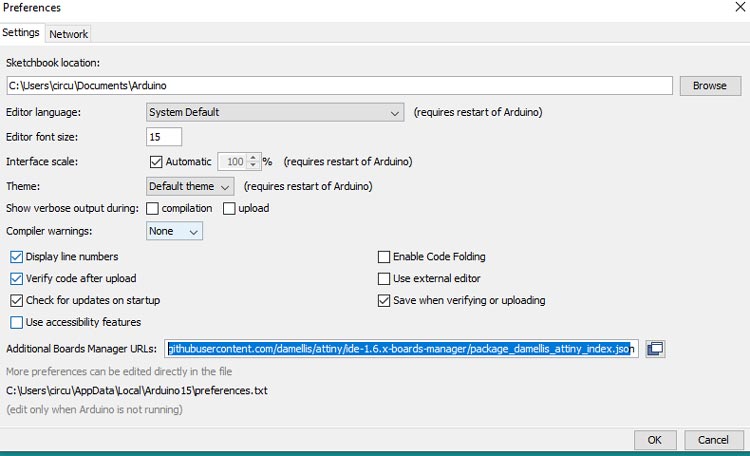
To program the ATtiny85 Board with Arduino IDE, first, we need to add the Digispark board Support to Arduino IDE. For that, go to File > Preferences and add the below link in the Additional Boards Manager URLs and click ‘OK.’
https://digistump.com/package_digistump_index.json
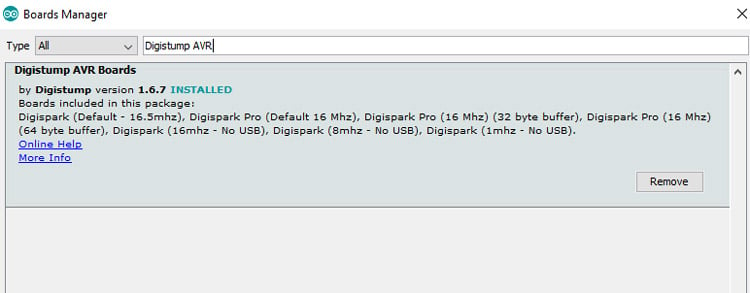
After that, go to tools > Board > Board Manager and search for ‘Digistump AVR’ and install the latest version.
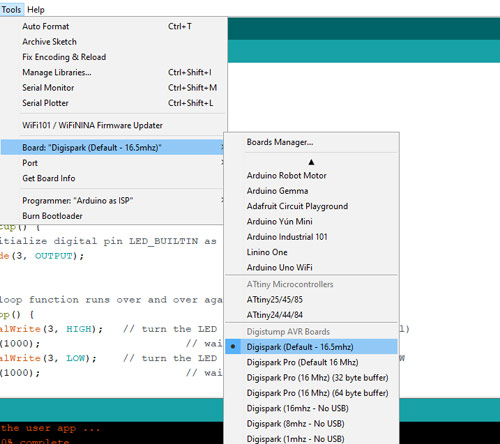
After installing it, now you would be able to see a new entry in the Board menu titled ‘Digispark’.
Now, go to file > Examples > Basics and open the Blink example.
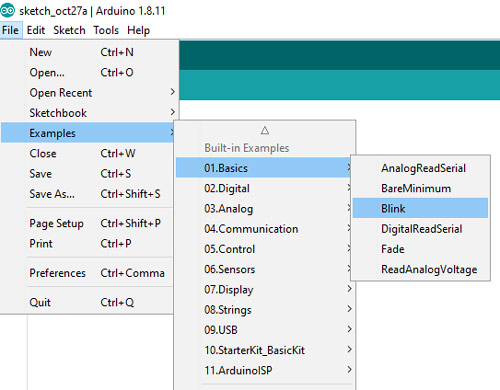
Change the pin number on there from LED_BUILTIN to 0.
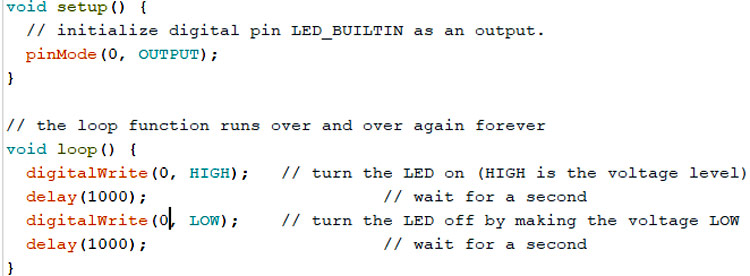
Now go back to Tools -> Board and select the “Digispark (Default – 16mhz)” board. Then click on the upload button in Arduino IDE.
Note: Connect the ATtiny85 board to the computer, only when the Arduino IDE displays a message saying “Plugin device now”.
Once the code is uploaded, the LED connected to ATtiny85 should start blinking.
This is how you can build your own ATtiny85 Arduino Programming board. If you have any questions, leave them in the comment section.